

 図書館カレンダー
FAQ
How do I fill in the purchase request screen?
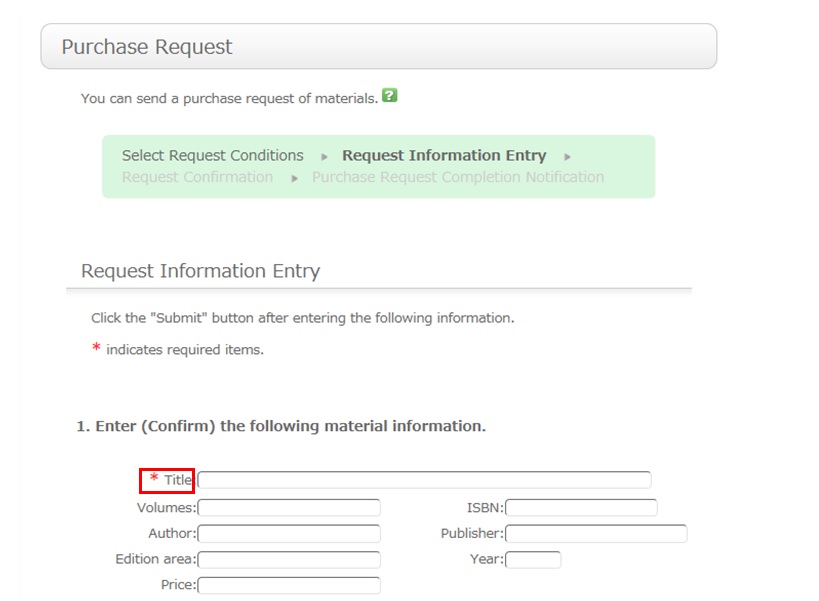
To be certain about obtaining those materials, enter as much detailed information as you can.
* Bold characters indicate required fields.
2. Next, enter your own information in the client information fields.
Note that if your contact information has an error, the materials cannot be promptly handed to you.
So be sure to enter the contact information for getting in touch with you.
3. Select the purchase application area and whether or not there is a reservation. Then, enter a note.
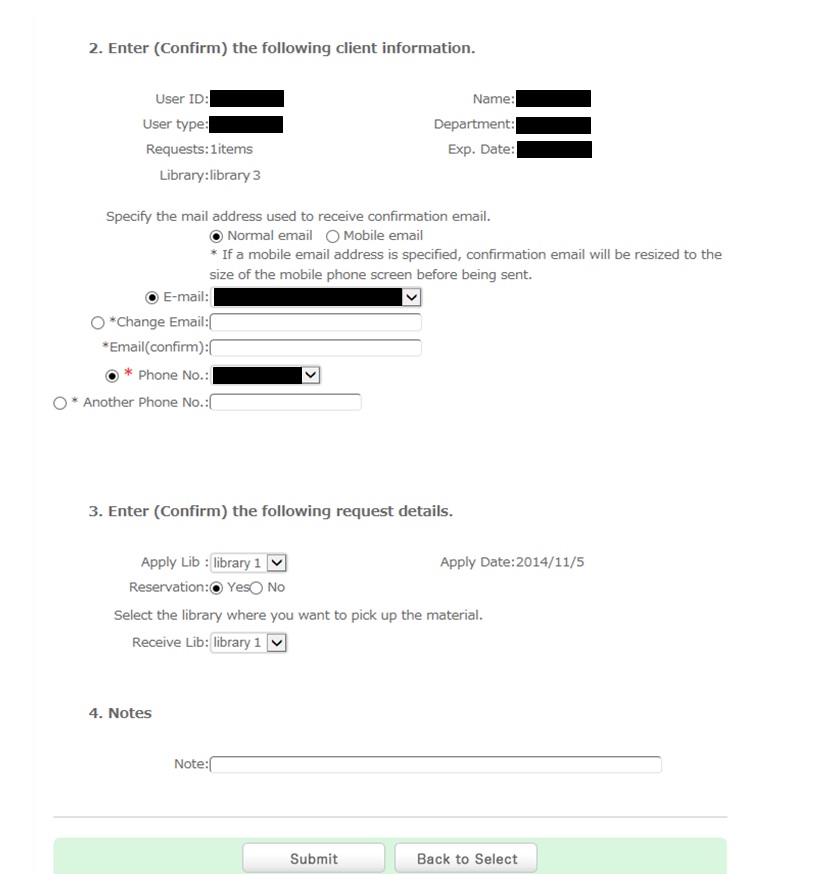
You may have information other than the above to report separately. Enter such information in the remarks field.
Once you have entered the above details, click the [Submit] button, and confirm the details on the confirmation screen.
When there are no problems, click the [Submit] button to complete the procedure.
図書館案内
利用者サービス
図書館活用ガイド



図書館アプリ

App Store:Fujitsu Limited
Google Play:FUJITSU LIMITED